A visitor searches your site for “laptop for coding.” Your page says “machine for software engineering.” Keyword search finds nothing — the words don’t match, even though the page is exactly what they wanted.
This is the vocabulary mismatch problem. Your content team writes one way; your visitors search another way. Keyword search only finds content when both sides happen to pick the same words.
Semantic search fixes this by matching meaning instead of characters. A language model compares what the visitor meant against what your content is about — so “laptop for coding” and “machine for software engineering” land in roughly the same place, even with zero words in common.
Optimizely Graph has this built in. No vector database, no embedding pipeline, no extra infrastructure. Mark a couple of fields as searchable, change one value in your GraphQL query, and you’re running it.
The setup is genuinely that simple. Getting good results takes a bit more understanding — which is what the rest of this post covers.
Before you start: make your fields searchable
Semantic search only looks at fields marked searchable in your content type definition. If a field isn’t flagged, the model never sees it — no amount of query tuning will change that.
For this walkthrough I created a content type called CKExperienceType with two searchable fields:
- Title — long string
- MainBody — XHTML string
You set this in the CMS under Content Types → Properties. Select the property, then set Property Indexing Type to Searchable:
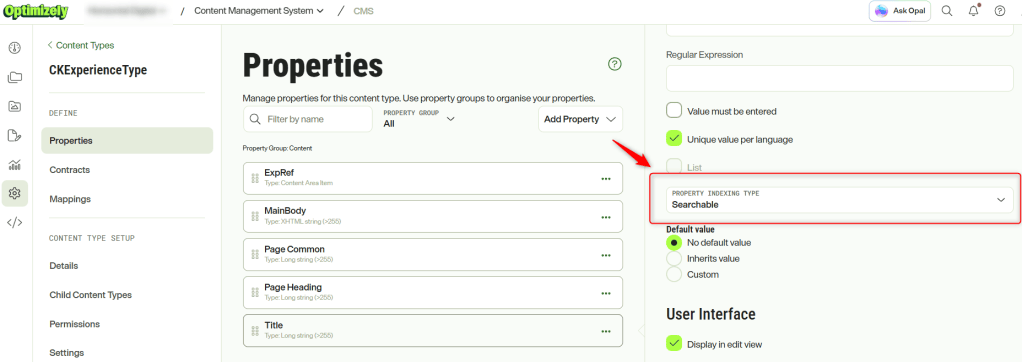
Fields with substantial text, like MainBody, are where semantic search earns its keep — there’s more meaning for the model to work with than in a short title.
One thing that catches people out: if you set the searchable flag after your content is already published, republish the pages. Indexing happens at publish time, so existing content won’t pick up the change on its own.
To confirm everything landed, query _fulltext — it returns the combined indexed text for each item.
{
  CKExperienceType(limit: 50) {
    total
    items {
      _metadata { displayName }
      _fulltext
    }
  }
}
If a page comes back with an empty or missing _fulltext, the flag didn’t take or the content hasn’t been reindexed. Fix that before going further — every query after this depends on it.
Some test content
To see semantic search do anything interesting, you need content where the meaning is clear but the wording varies. I created six short pages on deliberately different topics:
| Title | What it’s about |
|---|---|
| Working From Home Best Practices | remote work setup, focus, video calls |
| Annual Leave Policy Update | twenty-five days paid time off, HR portal |
| Picking the Right Machine for Software Engineering | 16GB memory, processor, SSD, coding |
| Company Retirement Savings Plan | salary contributions, tax-advantaged fund |
| Reducing Server Response Times | caching, page loads, p95 latency |
| Onboarding Checklist for New Hires | first week, account setup, buddy system |
| Getting Ready to Welcome a New Team Member | equipment ready, colleague assigned, check-ins |
Each page is two or three sentences in MainBody, with the title in Title.
The important detail: none of these pages use the words a visitor would actually search with. The leave policy never says “vacation.” The laptop page never says “laptop for coding” — it says “machine for software engineering.” The onboarding page never says “new starter.”
That gap is the whole point. It’s what separates a search engine that finds things from one that only finds exact wording.
Your first semantic query
Turning on semantic search is a one-value change. Here’s a normal keyword query:
{
  CKExperienceType(
    where: {
      Title: { exist: true }
      _fulltext: { match: "why is my website taking forever" }
    }
    orderBy: { _ranking: RELEVANCE }
  ) {
    total
    items {
      _score
      Title
    }
  }
}
And here’s the same query with semantic ranking:
{
  CKExperienceType(
    where: {
      Title: { exist: true }
      _fulltext: { match: "why is my website taking forever" }
    }
    orderBy: { _ranking: SEMANTIC, _semanticWeight: 20.0 }
  ) {
    total
    items {
      _score
      Title
    }
  }
}
That’s it — RELEVANCE becomes SEMANTIC, plus a _semanticWeight value. Everything else stays the same.
Why this search phrase: it’s how a real person complains about a slow site. Now look at the page that should answer it.
Reducing Server Response Times
Slow page loads frustrate users and hurt conversion rates. Caching frequently requested data, compressing images, and minimizing database round trips all contribute to a snappier experience. Monitor your p95 latency, not just the average.
Check the query against it word by word — “why,” “website,” “taking,” “forever.” Not one appears on the page. The page talks about slow page loads, latency, response times. Same meaning, entirely different vocabulary.
Two things worth knowing before you run it:
_ranking: SEMANTICdoes nothing without a_fulltextmatchorcontainsclause. That clause supplies the query text the model compares against. Without it, there’s nothing to be semantic about._semanticWeightdefaults to0.2if you leave it out. We’ll come back to this number later — it matters more than it looks.
Now run both and compare the results.
Keyword search misses the point entirely
Run both queries against the same content and the difference is hard to miss.
With RELEVANCE — 3 results:
| # | Title | _score |
|---|---|---|
| 1 | Company Retirement Savings Plan | 5.696 |
| 2 | Getting Ready to Welcome a New Team Member | 3.314 |
| 3 | Picking the Right Machine for Software Engineering | 3.314 |
With SEMANTIC — 7 results:
| # | Title | _score |
|---|---|---|
| 1 | Reducing Server Response Times | 12.963 |
| 2 | Company Retirement Savings Plan | 12.739 |
| 3 | Getting Ready to Welcome a New Team Member | 11.437 |
| 4 | Annual Leave Policy Update | 10.384 |
| 5 | Onboarding Checklist for New Hires | 9.375 |
| 6 | Working From Home Best Practices | 9.299 |
| 7 | Picking the Right Machine for Software Engineering | 3.314 |
Look at what keyword search did with “why is my website taking forever.”
It returned three pages — about retirement savings, onboarding a new hire, and choosing a developer machine. Not one of them has anything to do with a slow website. Meanwhile the page that actually answers the question, Reducing Server Response Times, doesn’t appear at all.
That’s not a ranking problem. Keyword search never saw the right page, because the visitor’s words — “why,” “website,” “taking,” “forever” — appear nowhere in it. The page says slow page loads, latency, response times. Correct meaning, wrong vocabulary.
Semantic search puts it first.
This is the whole value proposition in one comparison. Not “semantic search ranks things a bit better” — keyword search returned zero useful results for a perfectly reasonable question, and semantic search answered it.
Understanding Semantic Weight
You may have noticed the weight in that query was 20.0 — a long way from the documented default of 0.2. Here’s why that matters.
Optimizely Graph doesn’t replace keyword scoring with semantic scoring. It adds them together:
_score = keyword_score + (_semanticWeight × semantic_similarity)
Two numbers per document. keyword_score is traditional text matching. semantic_similarity is how closely the model thinks your query and the document mean the same thing. _semanticWeight decides how much that second number counts.
Why the default often does nothing
The two numbers sit on very different scales. Keyword scores can run into the tens; semantic similarity values are small by comparison. At a weight of 0.2, the semantic contribution is a rounding error next to a keyword gap of ten or twenty points.
So when you switch RELEVANCE to SEMANTIC and the order doesn’t budge, nothing is broken. The semantic scoring is working — it’s just being outvoted by keyword scores on a much bigger scale.
Graph only returns the combined _score, so you can’t see how much came from each side. That makes tuning empirical: change the weight, re-run, look at what moved.
Expect to experiment
There’s no universal setting to copy. The weight you need depends entirely on your content and the query.
Start at the default and increase — 1, 5, 20, higher if needed — and watch for the point where results you know are relevant start climbing. In my seven-page test set, meaningful reordering didn’t appear until the weight was well into double digits. On a larger, more varied corpus the crossover may sit much lower.
The weight is a positive float with no ceiling at 1, 10, or 100, so don’t be shy about going high while testing.
📌 Tired of guessing at the weight? Part 2 shows how to run one query at two weights and recover the exact keyword and semantic scores behind _score — so you can pick a weight from evidence instead of feel: Tuning Semantic Search in Optimizely Graph by Splitting the Score
Final Thoughts
Semantic search in Optimizely Graph is a two-minute switch. Mark your fields searchable, add _ranking: SEMANTIC, done — vector search over your CMS content with nothing extra to run or maintain.
But look again at what actually happened above. Keyword search didn’t rank the right page badly. It never saw it. Three irrelevant results came back, and the one page that answered the question was invisible — because the visitor said “website taking forever” and the page said “latency.”
That’s the gap semantic search closes, and it’s bigger than a sorting tweak.
Three things worth carrying forward:
Always run a control. Same query, RELEVANCE vs SEMANTIC. Without it you can’t tell whether semantic ranking is doing anything or keyword matching is quietly running the show.
Search like a visitor, not like a developer. “Why is my website taking forever,” not “server response time optimization.” Semantic search only earns its place when the words genuinely don’t line up.
Plan to tune. The default weight rarely moves anything. Expect several passes before results land where you want them.
For the oldest problem in site search — people asking for things in words your content doesn’t use — this is the first built-in answer that actually works.
Happy Optimizing!!!


One thought on “Getting Started with Semantic Search in Optimizely Graph”