Running ocp app prepare for a release version feels like the finish line. It’s actually the start of the most valuable part of the journey.
In our first post, we built Publish Child Items, a sidebar app for Optimizely SaaS CMS. Open a page, and the panel lists its child items with their status in each language. Select the drafts you want and publish them together, so a whole section goes live in one click instead of page by page.
Then we sent it to Optimizely for review.
A few thoughtful review rounds later, it’s live in the App Directory at version 1.0.0, and it’s a better, safer app because of that review.
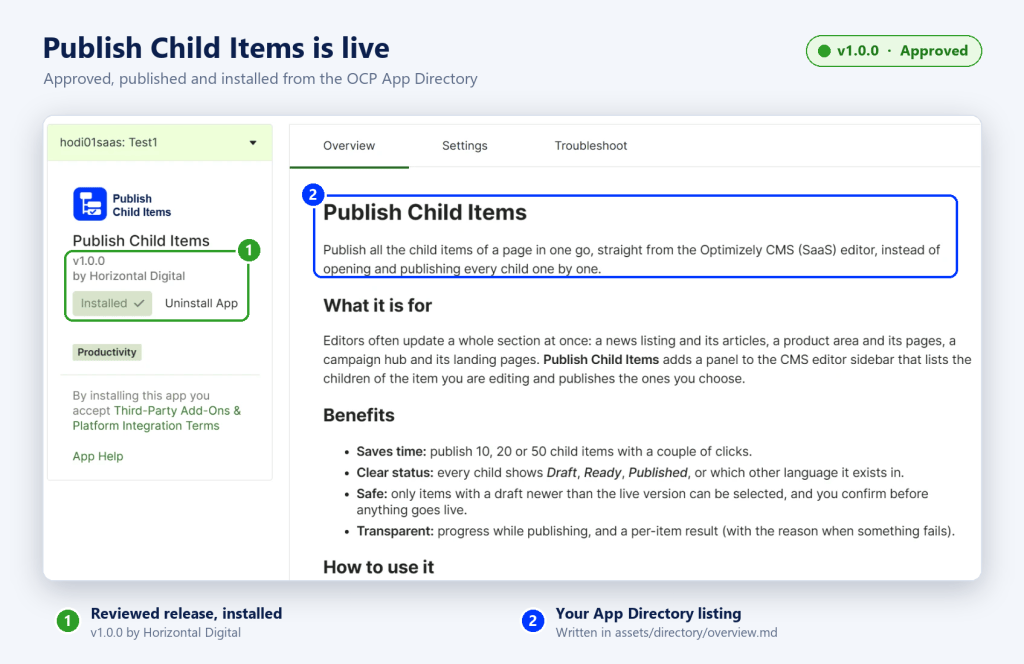
In this post, we’ll walk through what happens after you submit: how the review works, what it caught, how we fixed it, and how versions move your installs from dev to release.
Submitting for Review
Moving from dev versions to a public release takes three small steps.
1. Choose a release version. In app.yml, drop the -dev tag:
version: 1.0.0
2. Validate one last time.
ocp app validate
3. Submit.
ocp app prepare
The CLI asks you to confirm that this is a release version. Answer yes, and OCP builds your app and starts the review.
What happens next
Optimizely reviews your code in a GitHub pull request, in a repository created for your app. You get an email when it opens, and comments arrive as normal PR feedback. You can also check progress from the CLI:
ocp directory status <app_id>@1.0.0
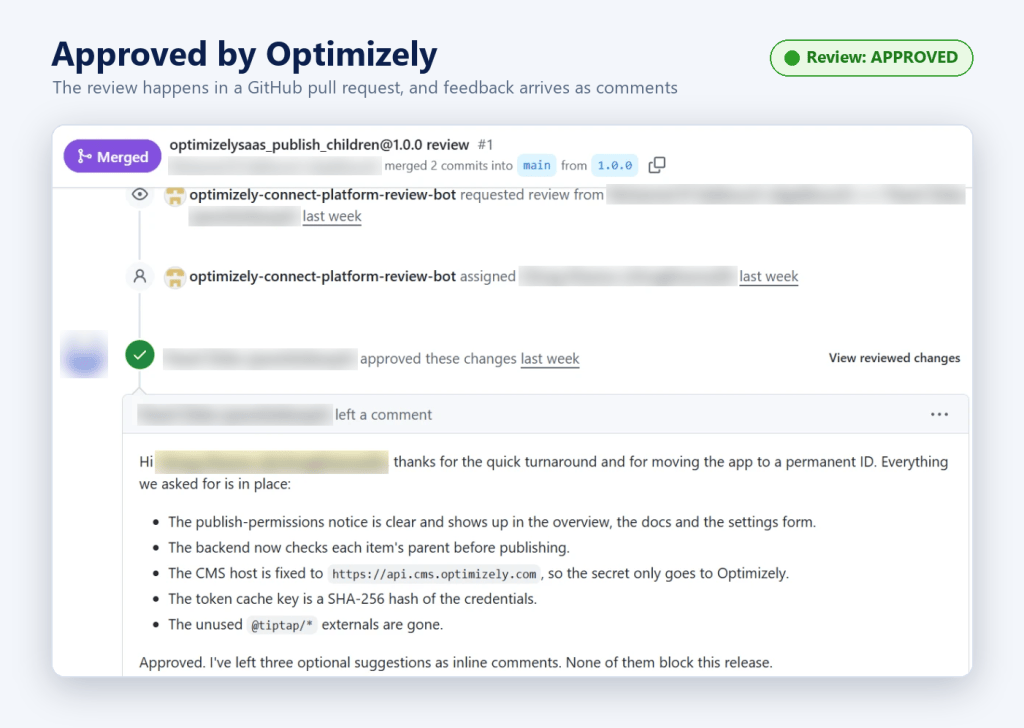
💡 Tip: your app ID becomes public once you release, and it can’t be changed. We re-registered ours as optimizelysaas_publish_children before release, so it reads well in the App Directory for years to come.
What the Review Looks For
The review is less an exam and more a second pair of expert eyes. For a CMS UI extension, expect questions like these:
- Who can trigger each action? Extensions aren’t told who the editor is, so if your app acts with its own API key, say so clearly in your listing.
- Does the backend trust only what it should? Check that requests match what the panel actually shows.
- Where do secrets go? Send API keys only to known Optimizely hosts, never to a configurable URL.
- Does the listing match the code? Every claim in your overview and docs should be something the app really does.
- Is it tidy? Remove template leftovers, and keep names consistent with your app ID.
💡 Tip: run through this list before you submit. It makes the review quicker and the app better.
From Approval to Live
An approved review doesn’t publish your app on its own. That final step is yours.
1. Check the status
ocp directory status <app_id>@1.0.0
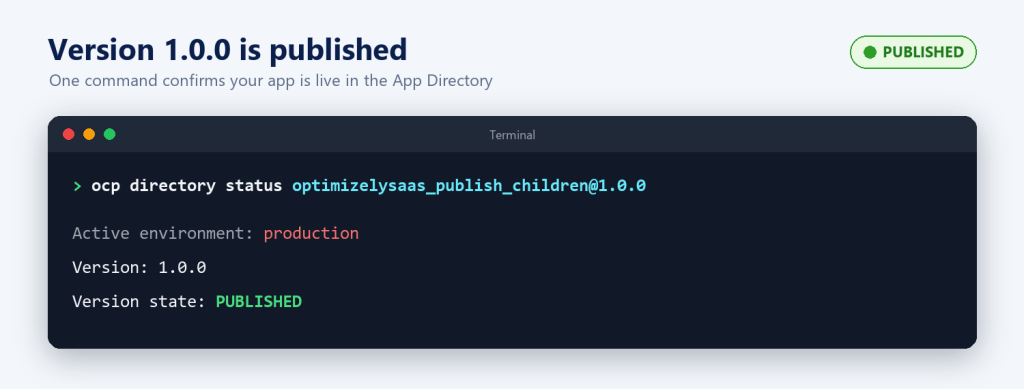
2. Publish.
ocp directory publish <app_id>@1.0.0
What happens to existing installs?
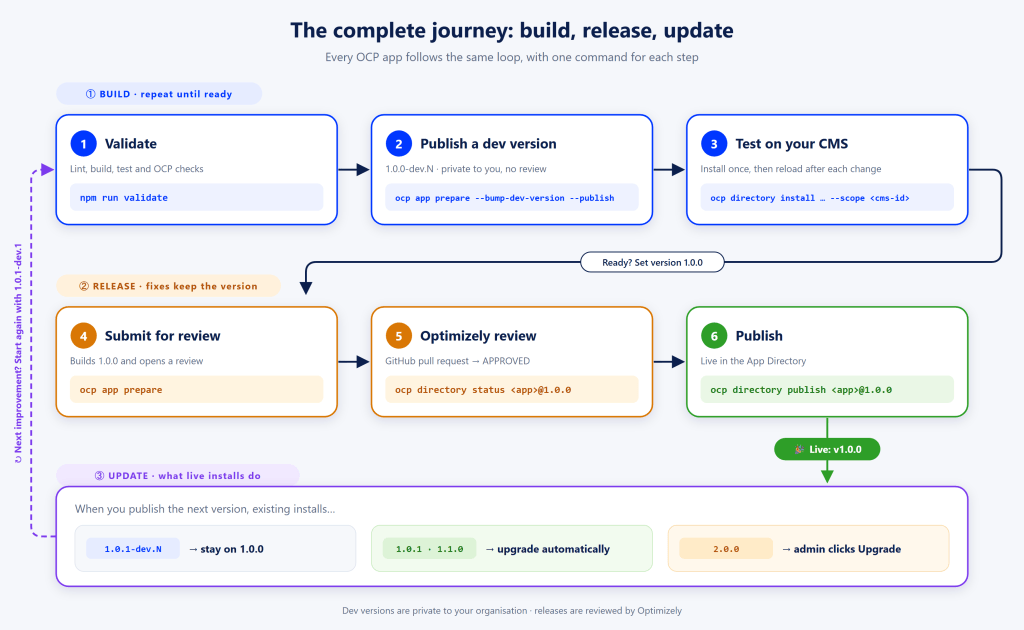
- Installs on an earlier release upgrade automatically to new minor and patch versions, such as
1.0.1or1.1.0. - Major versions (
2.0.0) wait for an admin to click Upgrade in the App Directory. - Your own test instance on a dev version can be moved to the release in one command:
ocp directory upgrade <app_id> -v 1.0.0 --scope <cms-instance-id>
💡 Tip: after publishing, open your app in the App Directory and read the listing as a new customer would. It’s the first thing they’ll see.
Shipping Updates After Release
Your app is live at 1.0.0. Improving it follows four simple steps, and your customers stay on the stable release the whole time.
1. Build the change as a dev version.
ocp app prepare --bump-dev-version --publish
Customers aren’t affected: dev versions never reach released installs.
2. Try it on your test instance.
ocp directory upgrade <app_id> -v 1.0.1-dev.1 --scope <cms-instance-id>
Newer dev versions then reach that instance automatically.
3. Release it. Set version: 1.0.1, run ocp app prepare for review, and ocp directory publish once approved.
4. Everyone gets the update.
| New version | Existing installs |
|---|---|
Patch or minor (1.0.1, 1.1.0) | Upgrade automatically |
Major (2.0.0) | Admin clicks Upgrade |
💡 Tip: move your test instance back to the release when you’re done: ocp directory upgrade <app_id> -v 1.0.1 --scope <cms-instance-id>.
The Complete Journey at a Glance
Final Thoughts
Shipping Publish Child Items taught us that the review is part of building, not a hurdle after it. It made the app safer, the listing clearer, and us better OCP developers.
If you’re about to submit your first app:
- Test on dev versions until you’re confident. They’re private and need no review.
- Run through the review checklist before you submit.
- Keep the version the same while you address feedback.
- Let versioning do the rest. Patch and minor updates reach every install automatically.
Publish Child Items is now live in the App Directory. Give it a try on your SaaS CMS, and share your feedback, ideas and reviews. We’d love to hear what you think and what you’d like to see next.
Happy Optimizing!!!

